
Windows 10
Instruction to set up WLAN access under Windows 10
Note
Please note that we can only offer help with problems on officially supported operating systems.
When prompted for user data, be case-sensitive and enter your username (not an alias) including @uni-bremen.de.
For security reasons, the WiFi password is not the same as the password of your Uni account. Students set the
Password automatically when activating the Uni-Account, other users have to set up the WiFi password in the onlinetools.
If you prefer manual setup, you will find manual setup instructions further down this page.
If there is a problem, please contact us by e-mail at wlanprotect me ?!uni-bremenprotect me ?!.de or at the IT-Servicedesk.

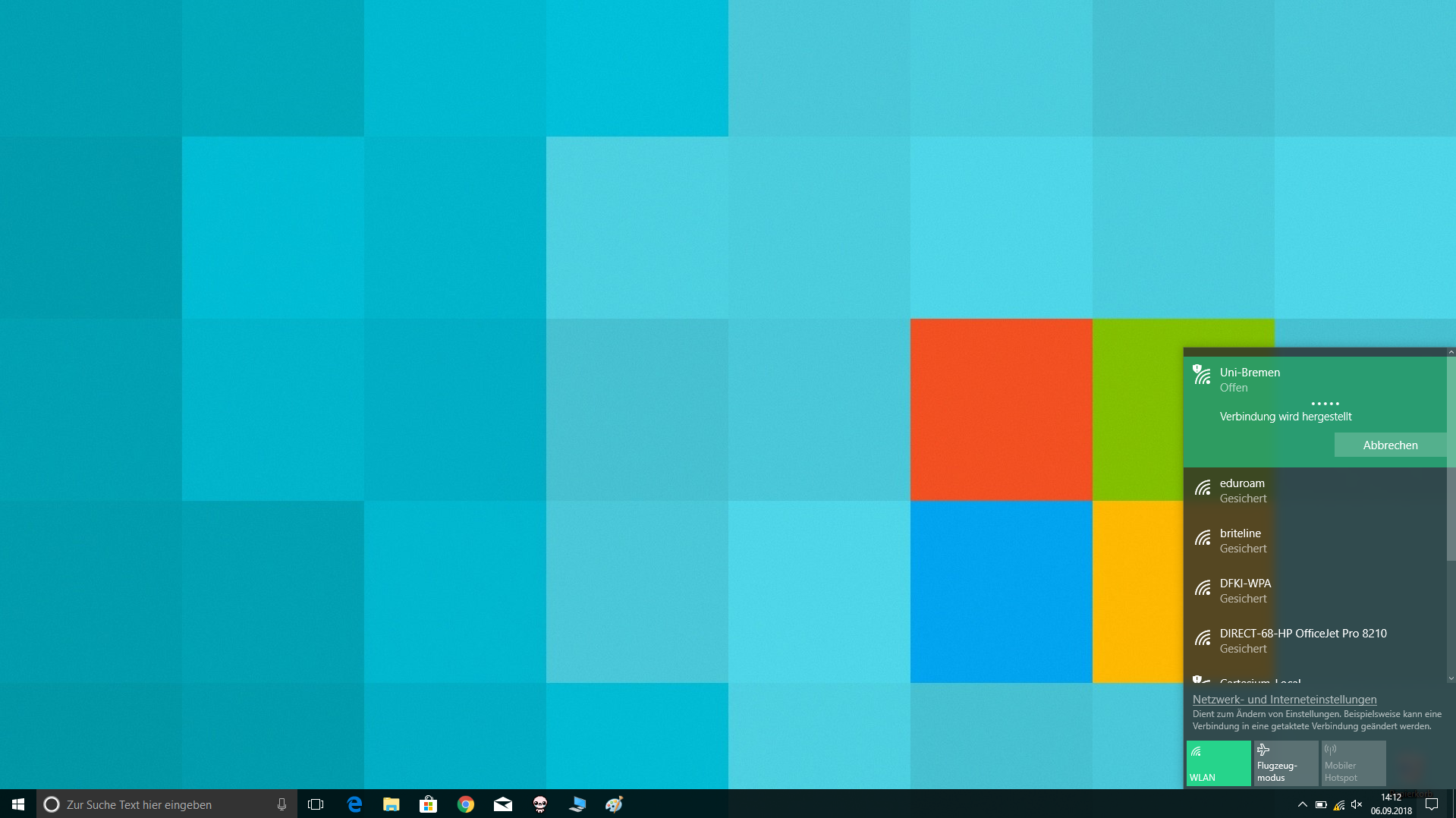
Step 2
A login window will open in your browser, click on the link to the CAT-Eduroam configuration tool or use the link wlan.uni-Bremen.de/cat.
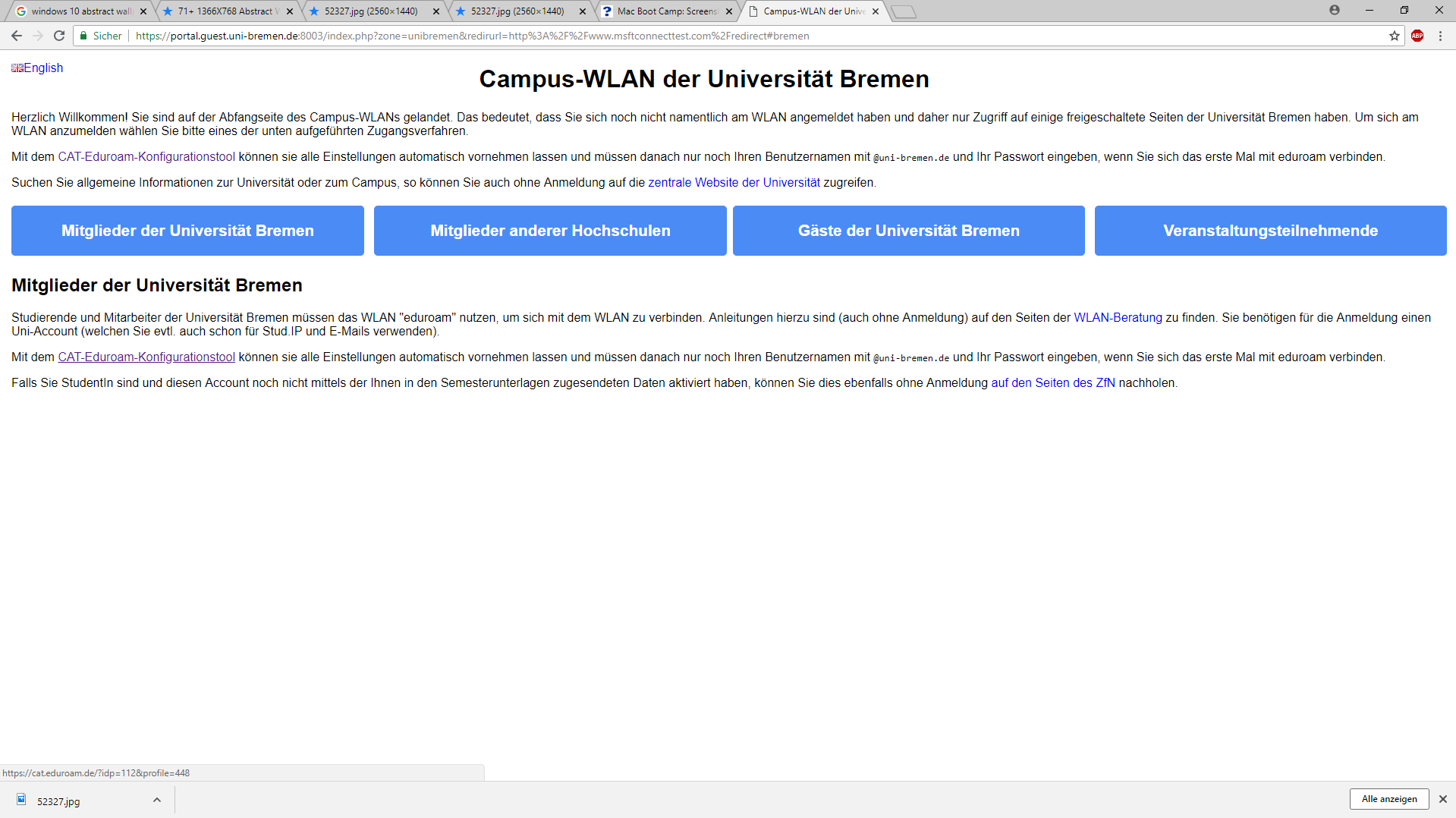
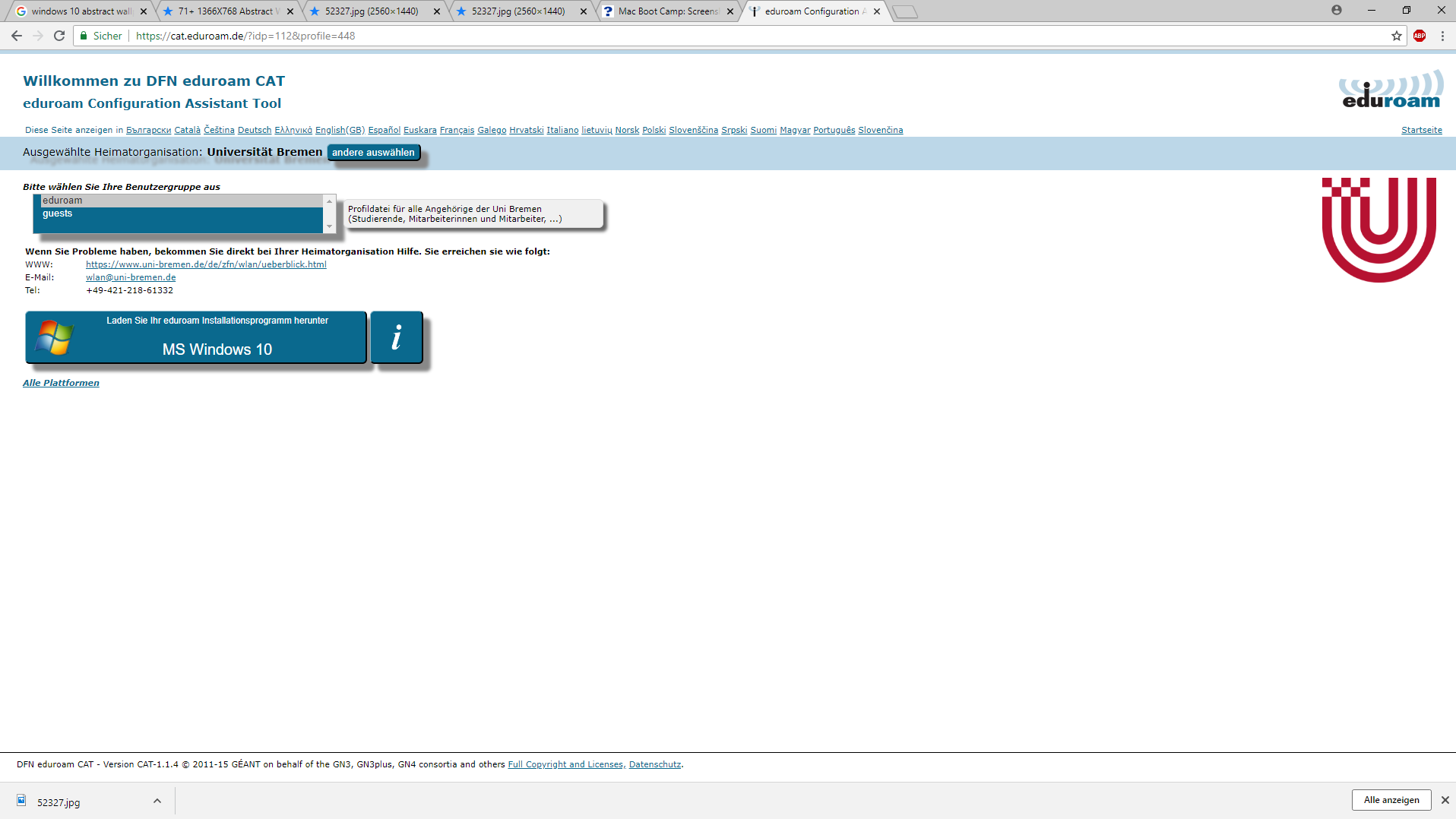
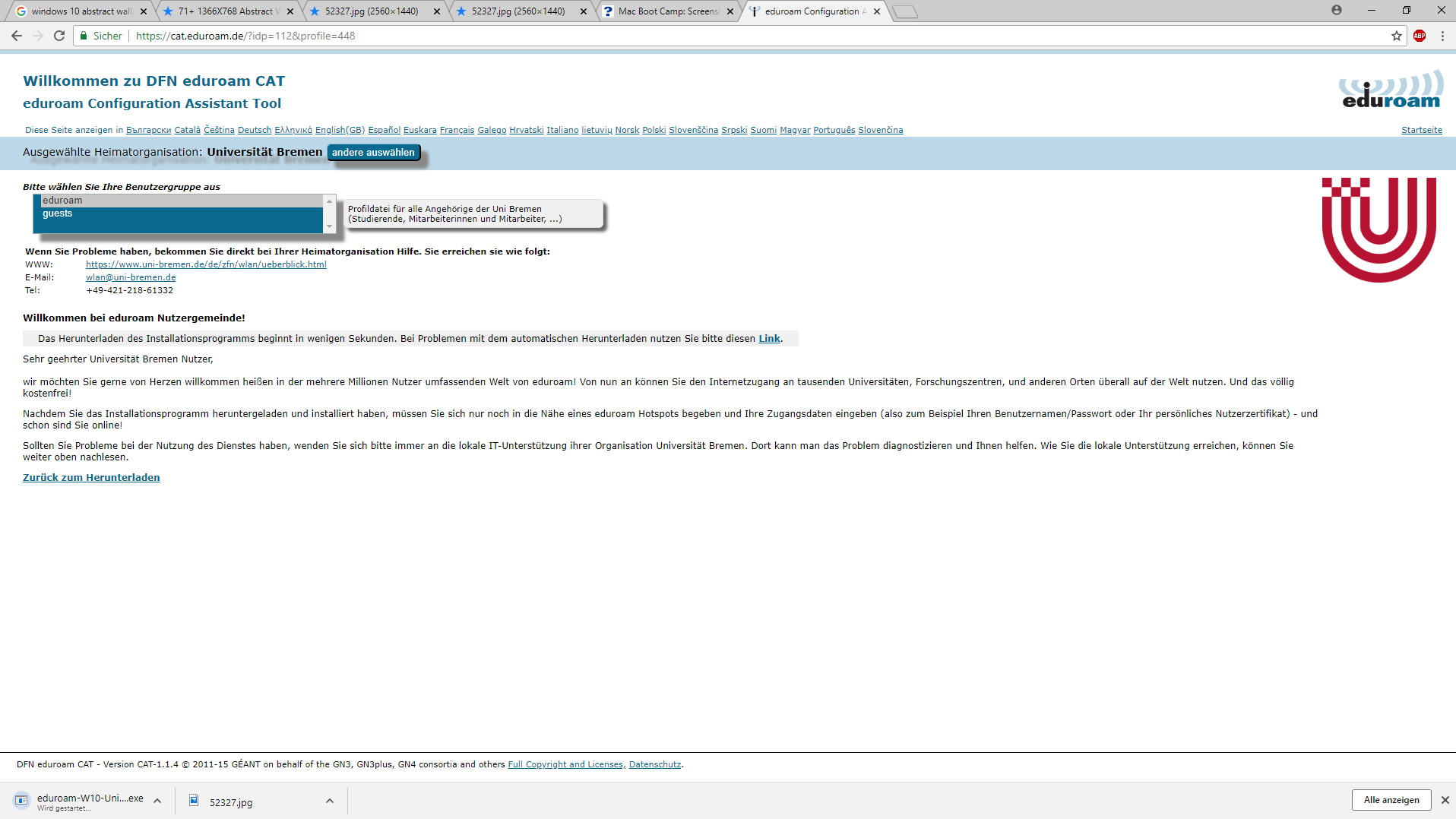
Step 4
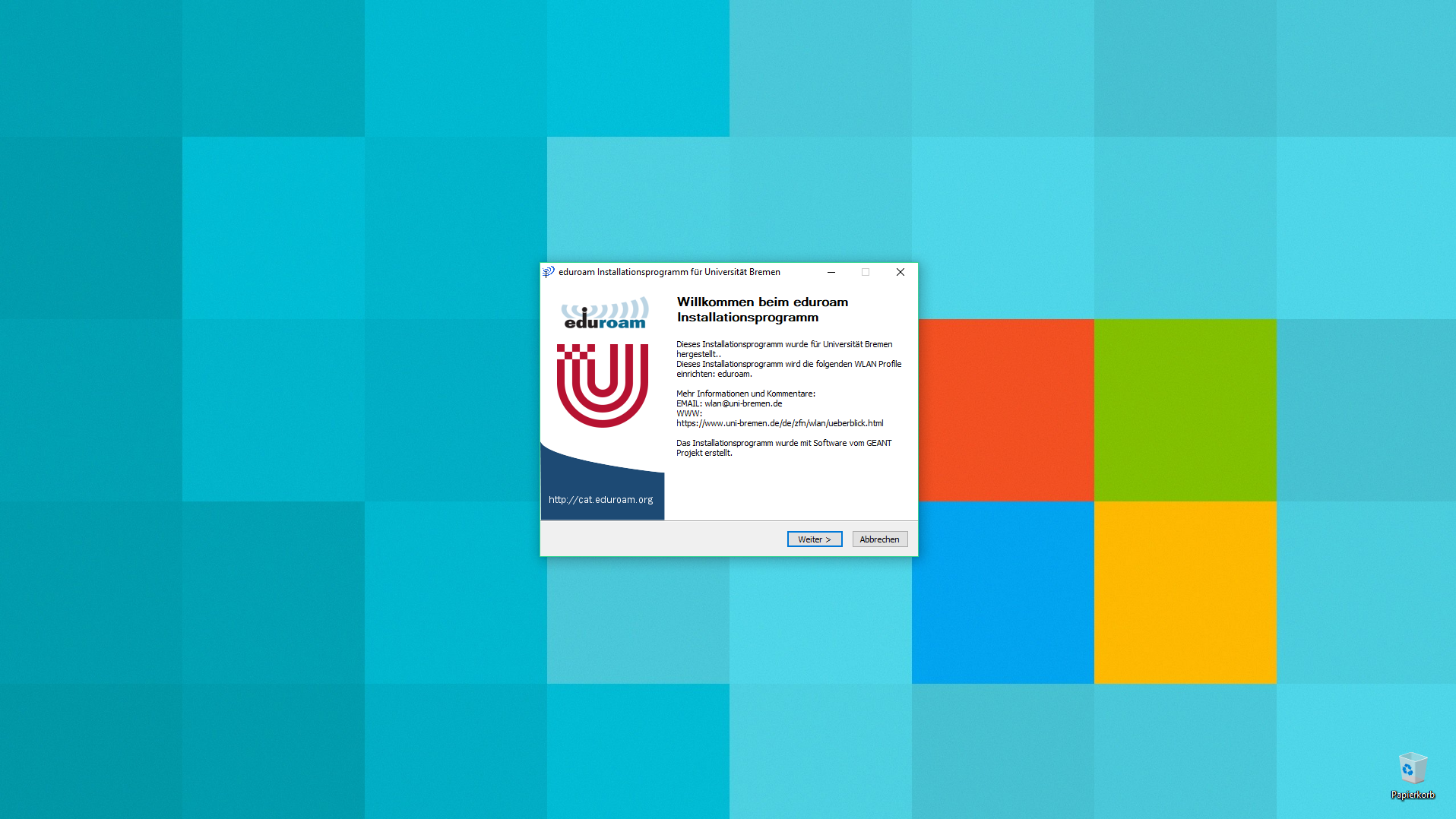
Launch the downloaded application (eduroam-W10-Universitaet_Bremen-eduroam.exe)
The installation starts by clicking on next
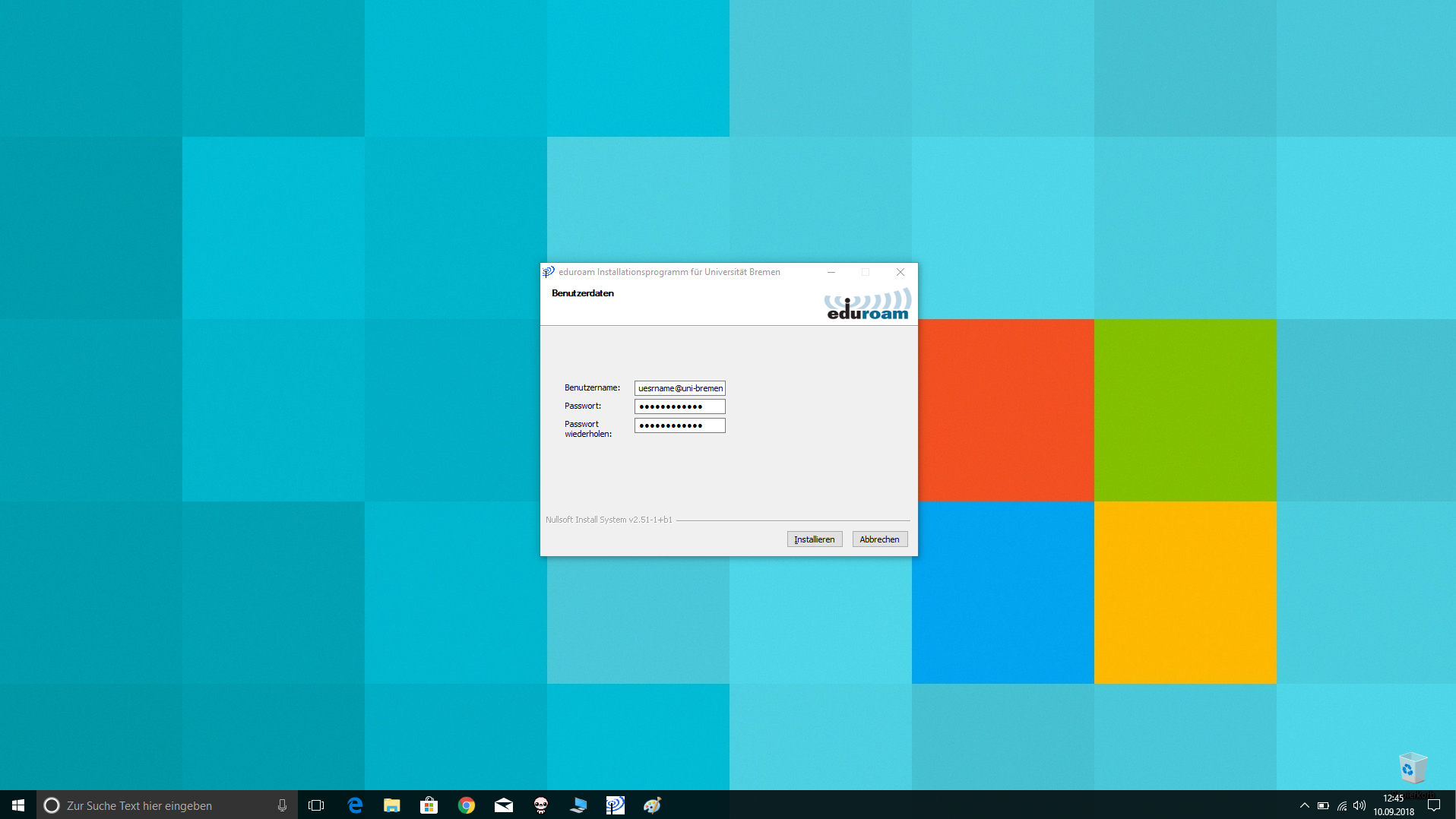
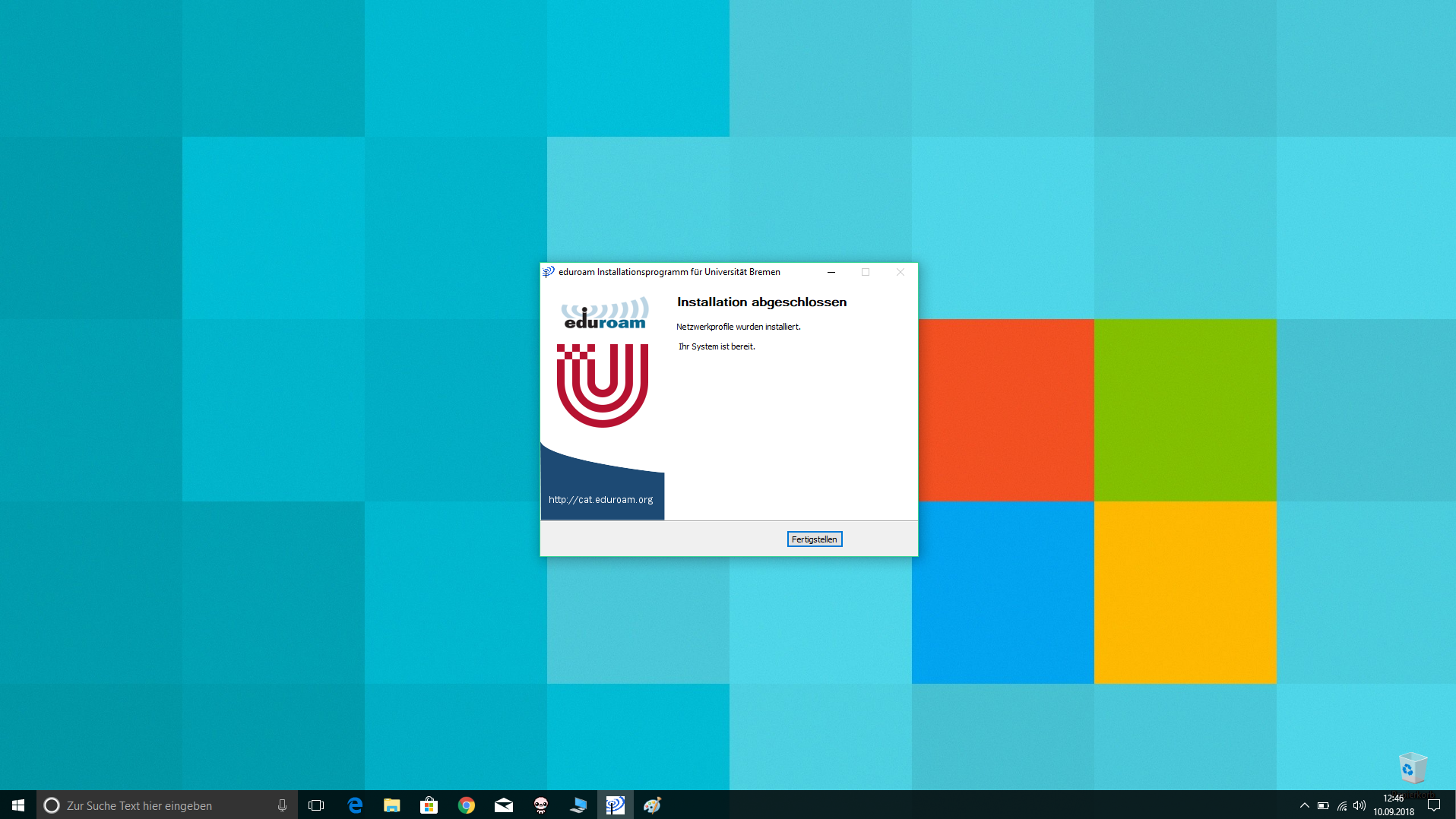
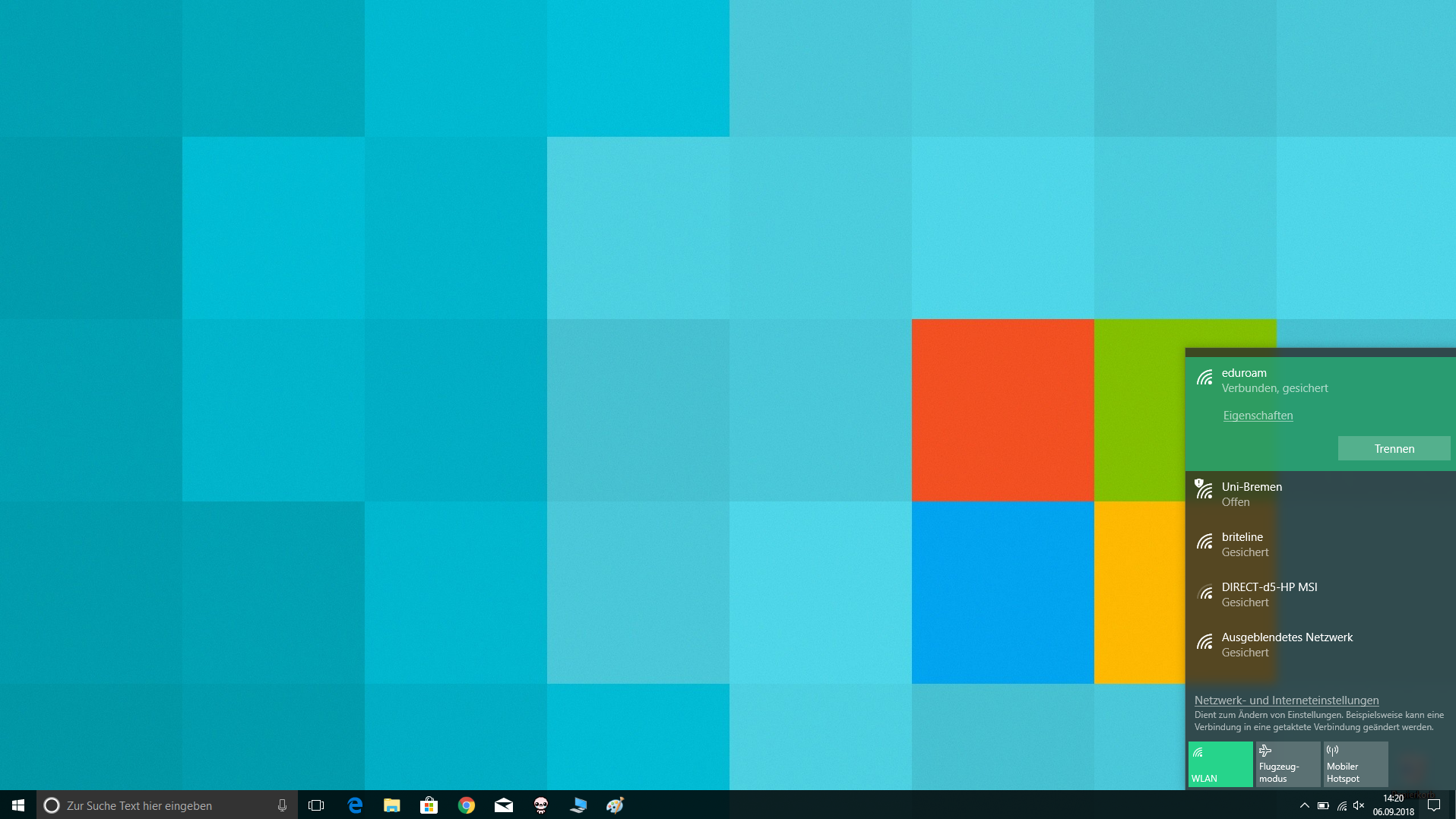
In the following window you will be asked for your login data for the Eduroam network, enter them in the form username@uni-bremen.de and the corresponding WiFi-password and confirm your entries with a click on install

Troubleshooting
If no connection is established, this can have various causes:
- The WLAN antenna of the notebook is deactivated. Usually, it is reactivated at the push of a button.
- If there is no access point with the eduroam network in the vicinity, the location must be changed.
If problems persist, our diagnosis page may be able to help.
Setup Guide for Manual Wifi Access on Windows 10
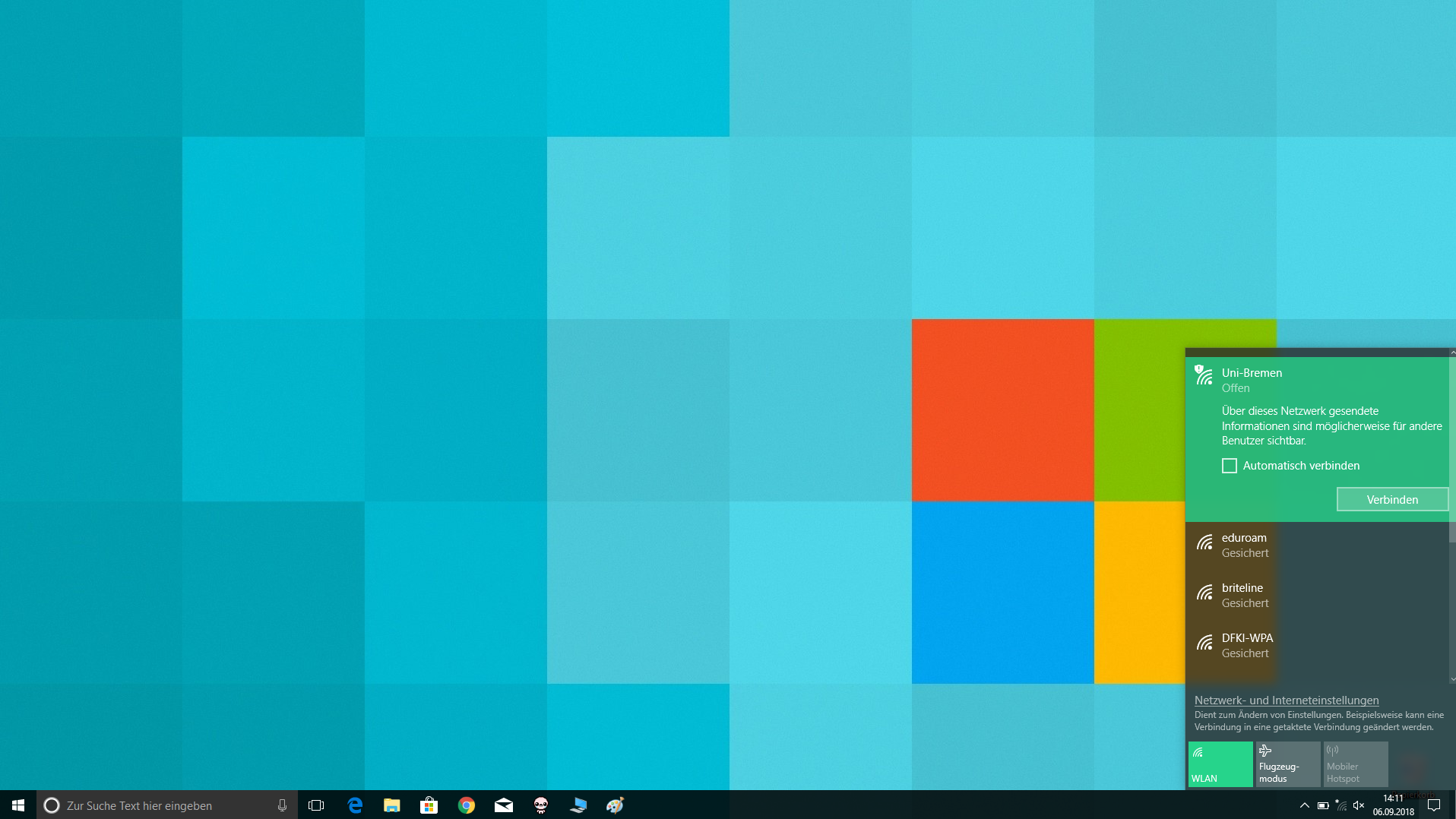
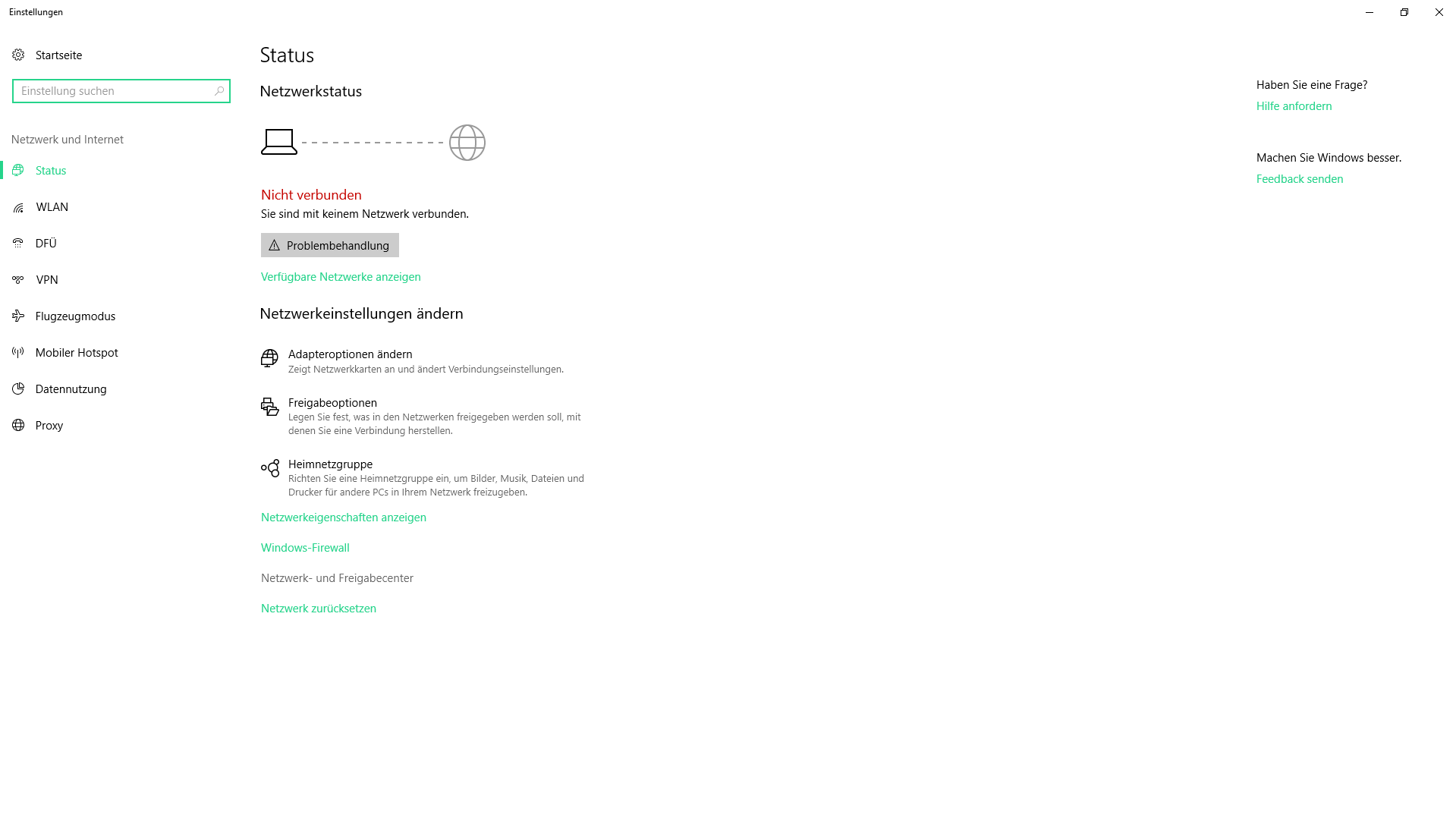
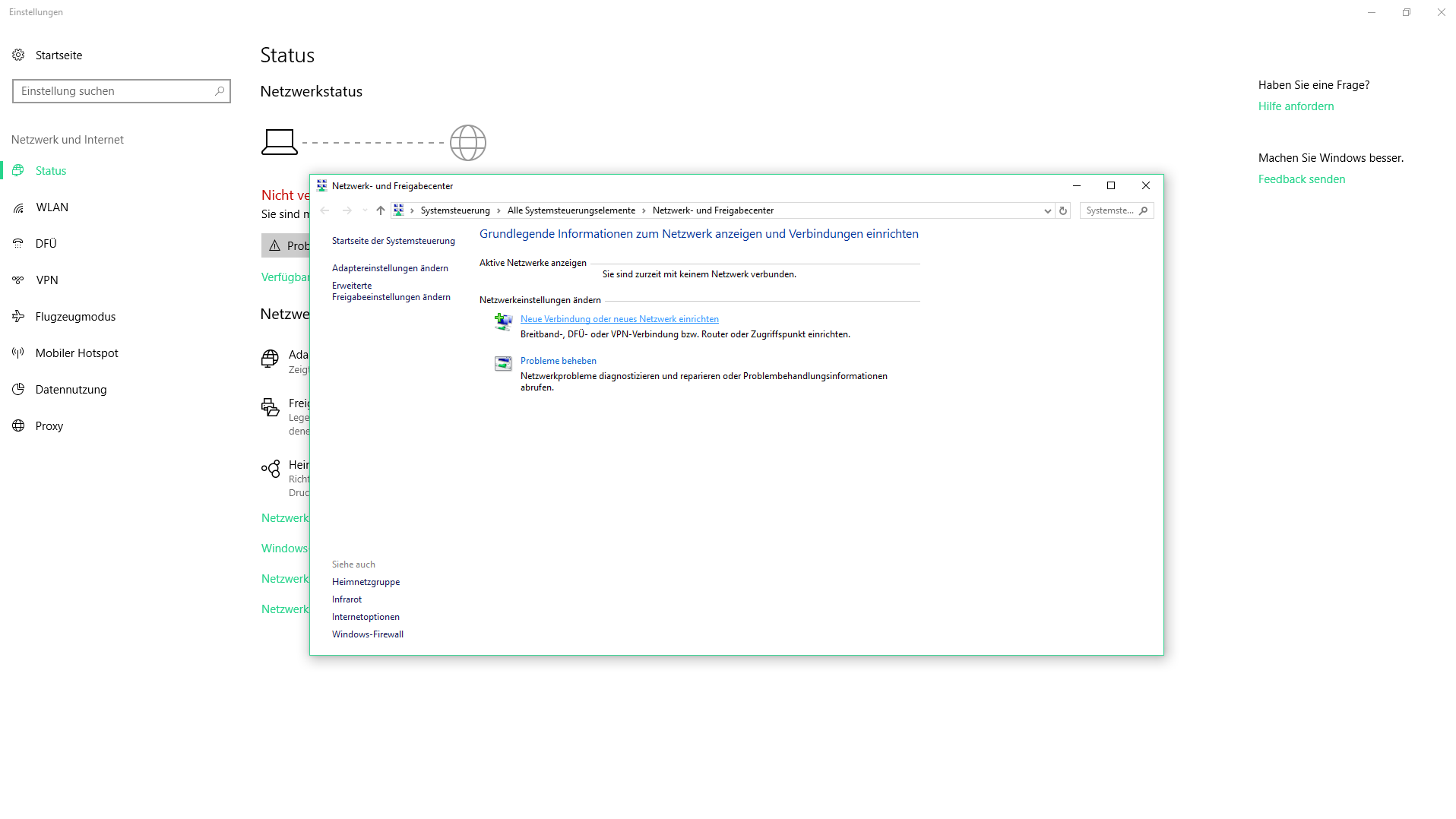
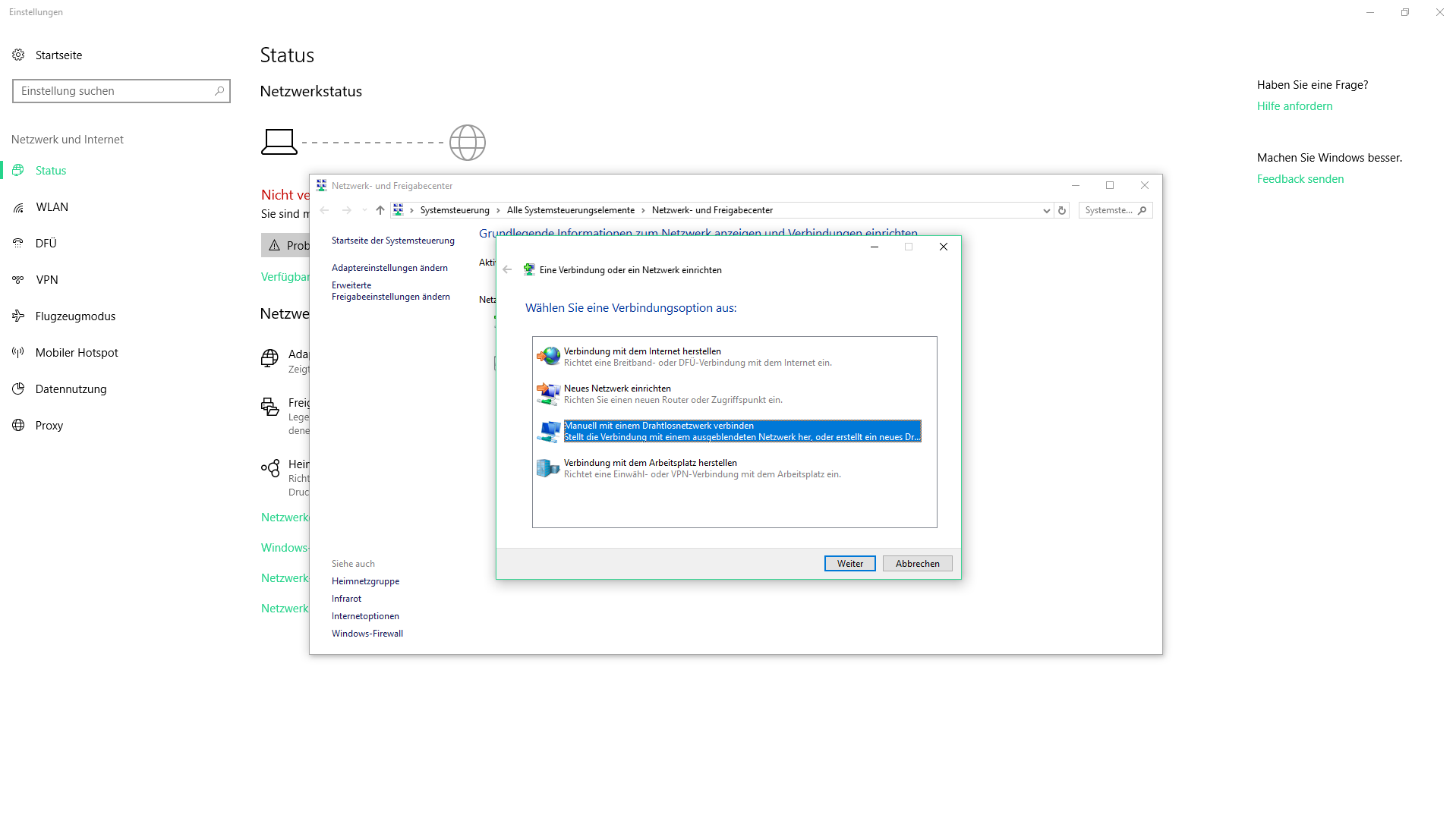
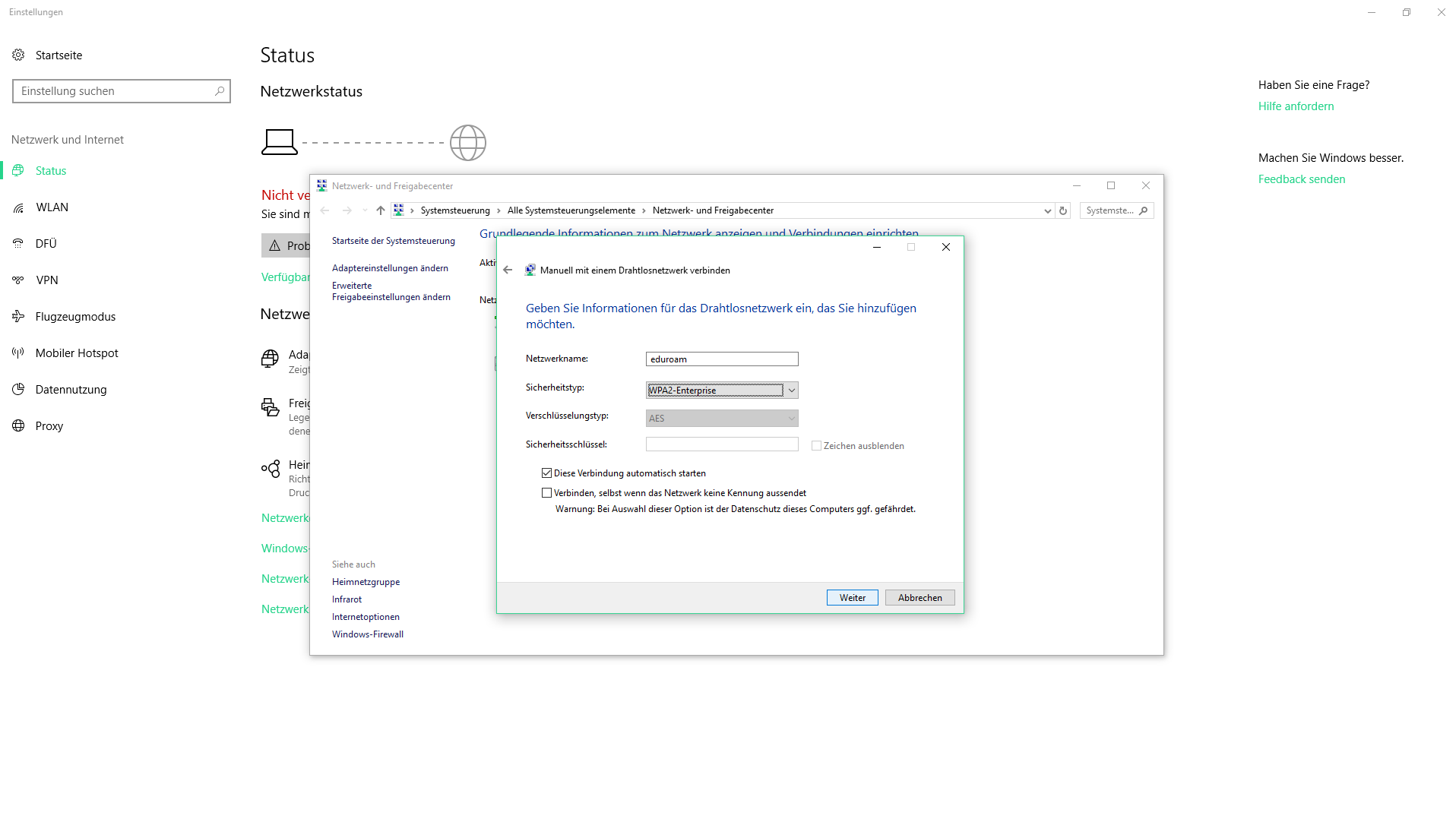
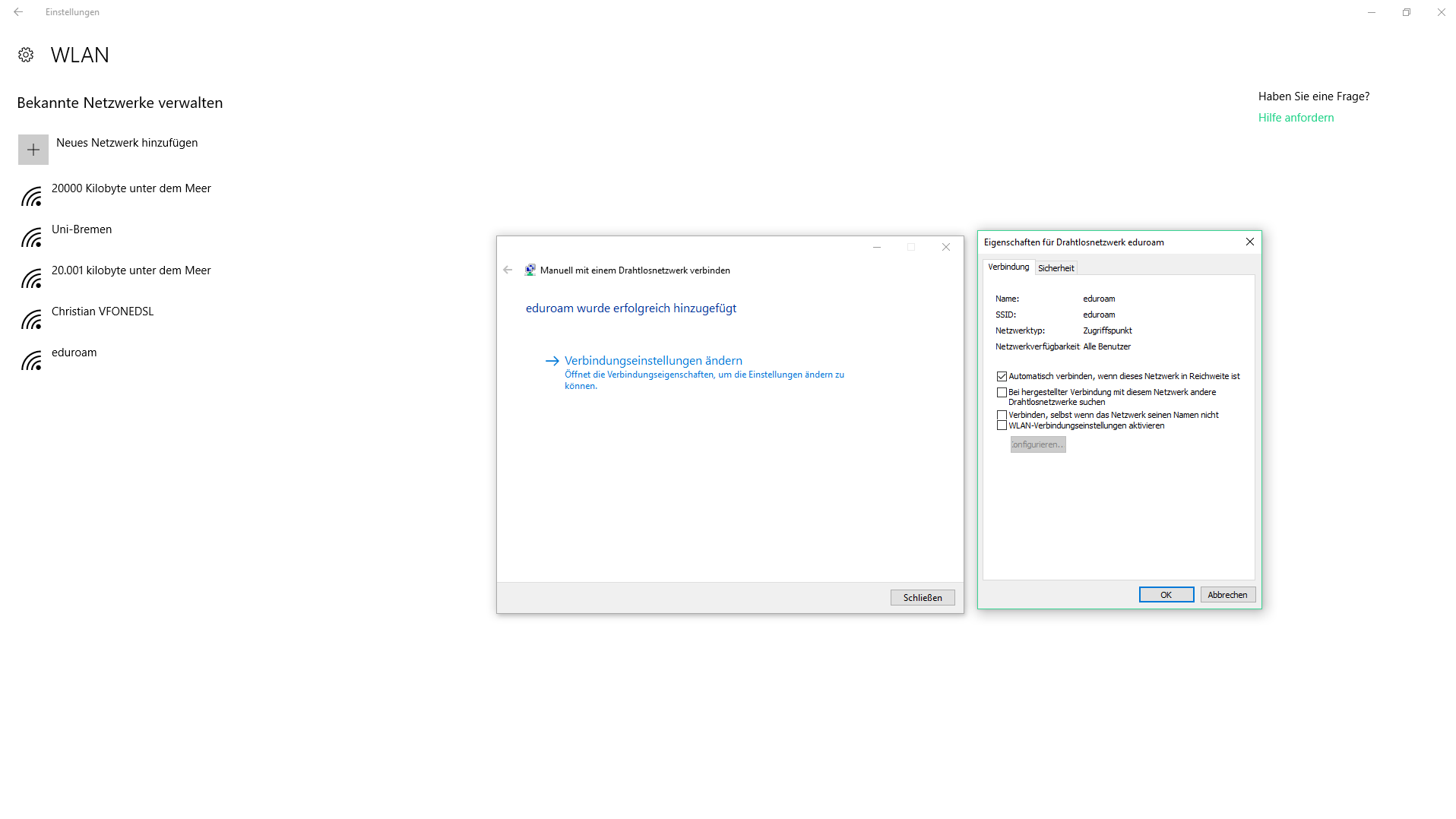
Step 7
Check "Connect to these servers" and enter "radius.wlan.uni-bremen.de" in the corresponding field.
Check the box "T-TeleSec GlobalRoot Class 2".
For "Select authentication method:" click on "Secure password (EAP-MSCHAP v2)" and then click on "Configure...".
In the "EAP-MSCHAPv2 Properties" window, remove the check mark and confirm the dialog with "OK".
Finally activate the item "Activate identity data protection" and enter "eduroam" in the field behind it.
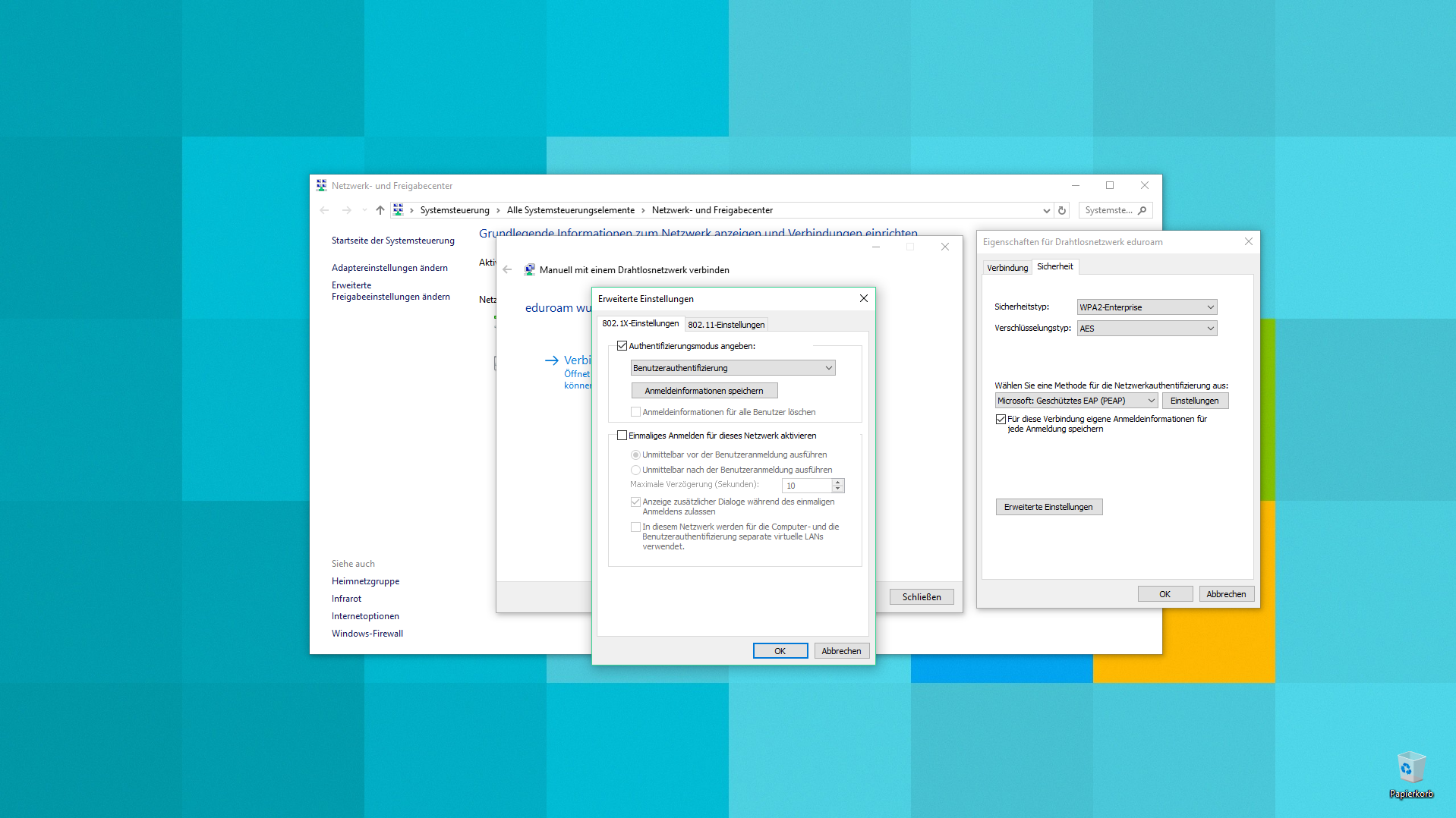

Step 9
At the bottom right corner of the screen, click the Connection Manager icon again, select the WLAN "eduroam" and click Connect. If a connection attempt has already been made, first click on "Disconnect" and then on "Connect" to make the changes effective.
Now the dialog for entering the access data appears. Enter the user name of the university account followed by "@uni-bremen.de" and the WiFi-Password. After a click on "OK" the connection should be established after a few seconds.
On some computers we have observed that user name and password have to be entered several times before the connection is established. Unfortunately, we have no influence on this peculiarity of Windows. If necessary, please enter your access data several times before you suspect another problem.


Troubleshooting
If no connection is established, this can have various causes:
- The WLAN antenna of the notebook is deactivated. Usually, it is reactivated at the push of a button.
- If there is no access point with the eduroam network in the vicinity, the location must be changed.
If problems persist, our diagnosis page may be able to help.